
Inventory overview
Manage products, stock, photos, sizes or colors, Excel import, and AI Bulk Add.
Last updated: 2026-08-31
Inventory overview
Inventory is your product list — name, price, stock, photos, and choices like size or color.
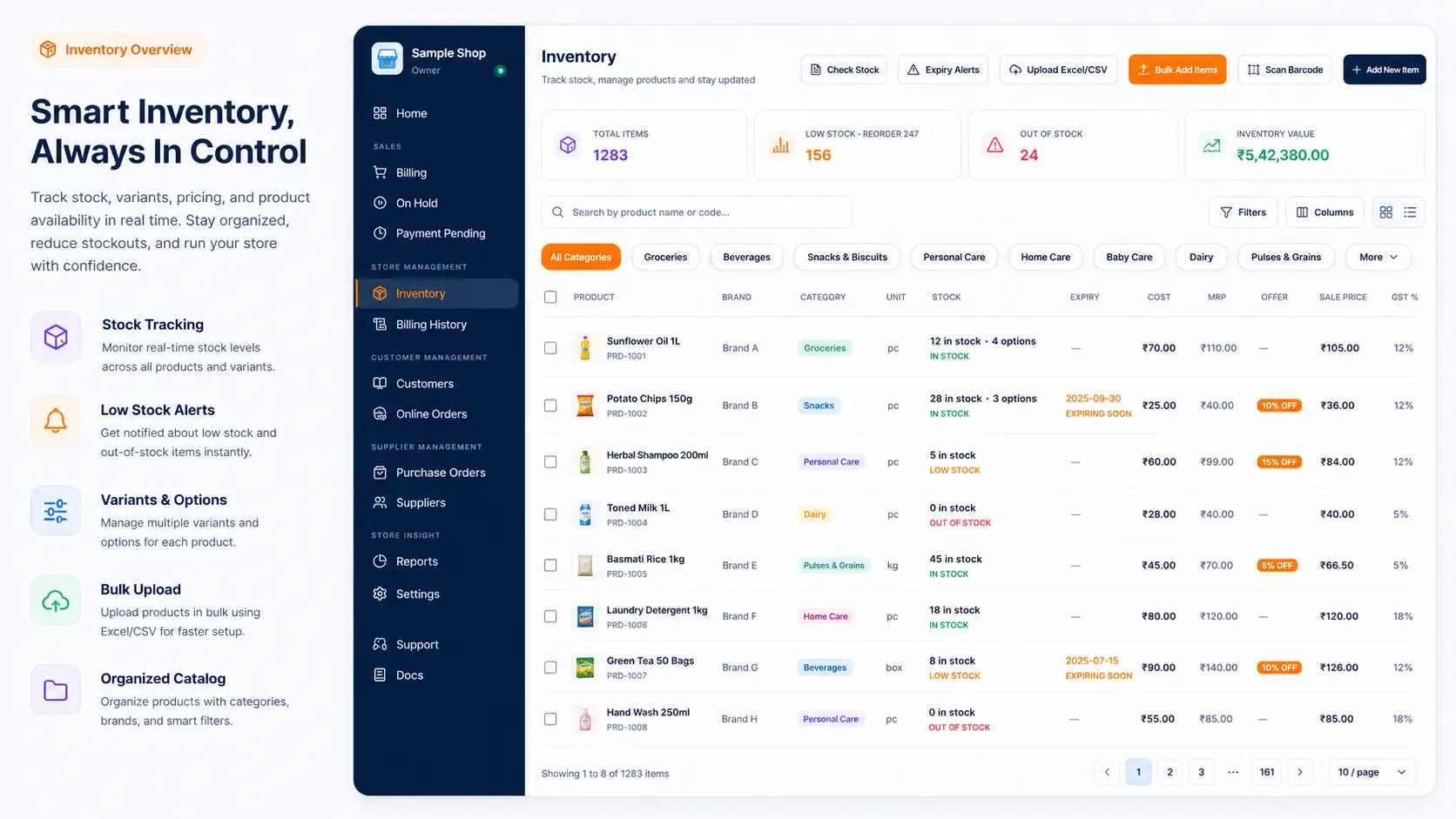
Billing and your online shop use this list.
What you can do here
| Task | Simple meaning |
|---|---|
| Add a product | Put one new item in your shop |
| Edit / delete | Fix details or remove an item |
| Update stock | Add or reduce quantity |
| Photos | Show pictures in the app and online shop |
| Sizes & colors | Sell one item in many choices (for example Red / Blue) |
| Bulk Import | Add many products from Excel or CSV |
| AI Bulk Add | Add products from a photo or voice |
Before you start
- Open the correct shop (use Switch shop if you have more than one).
- Keep name, sale price, unit, and stock ready.
- Use clear names so search in Billing is easy.
Quick start
- Open Inventory.
- Tap Add Product.
- Fill name, category, unit, sale price, cost, and stock.
- Add a photo if you want.
- Tap Save.
If you cannot add more products
Your plan has a limit on how many products you can keep.
The app may ask you to View plans to upgrade, or you can remove old products and try again.
What happens next?
- Sell the product from Billing.
- If your online shop is on, customers can see it based on your catalog settings.
- Low stock items show under Low stock.
Related help
Need more help?
Contact LocalShopWala Support. We are happy to help you run your shop.